Dock
A small floating bar at the bottom of the screen that changes with what the shopper is looking at: the product behind a banner, the sale items in a collection, or a reminder to finish checking out.
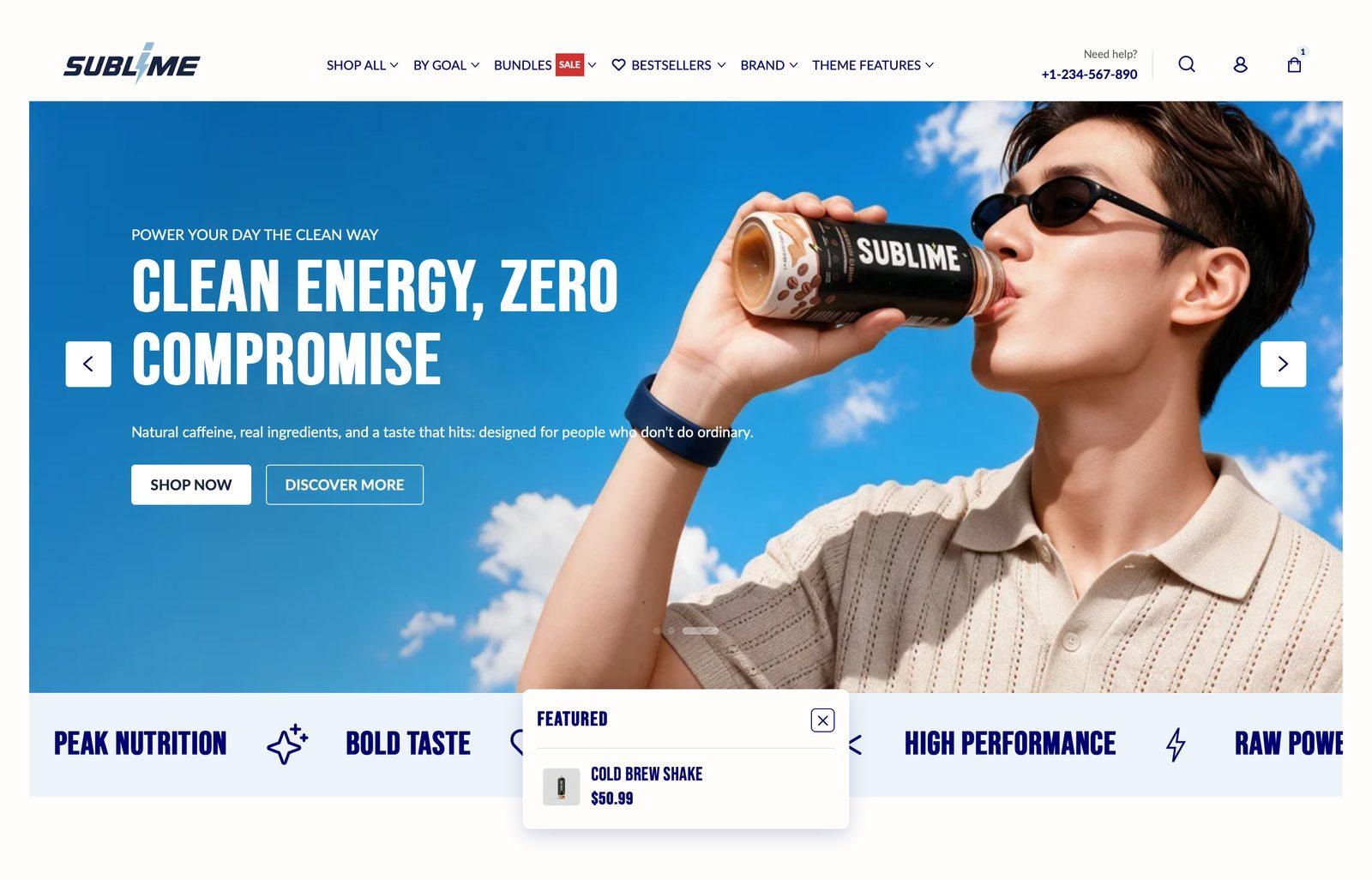
At a glance: Already in your theme. Find it in the Overlay area of the left sidebar, on every page.
Good for
- Turning a banner into a shoppable product card
- Surfacing on-sale products while shoppers browse a collection
- Nudging idle shoppers back to their cart
Get each dock mode showing
- Spotlight shows a mini product card for the banner a shopper is looking at. Add the Spotlight block and tick the sections it should work with. Then, in those sections, link a button to a product page. The card appears while most of that banner is on screen.
- Sale lists products that are on sale. It only appears on collection pages, and shows up to 10 in-stock products whose compare-at price is higher than their price. It checks the first 50 products in the collection.
- Cart nudge shows the shopper's cart items with View cart and Checkout buttons. It opens by itself when the cart has items and the shopper has been inactive for Idle time. It never opens while a drawer, quick view or pop-up is open.
- When more than one mode could show, the dock picks one: Cart nudge first, then Spotlight, then Sale. If none of them has anything to show on a page, the dock stays hidden.
Section settings
Layout
| Bottom offset |
How high above the bottom of the screen the dock floats. 0 puts it almost on the edge, and higher values lift it up.Adjustable from 0% to 100% (default 20%). |
| Dock corner radius |
How rounded the dock is. The default of 20 gives a pill shape, and lower values give squarer corners.Adjustable from 0% to 50% (default 20%). |
| Button corner radius |
How rounded the small previous, next and close buttons are at the top of the open dock.Adjustable from 0% to 50% (default 20%). |
Features
| Enable icon animation |
Brings the eye icon on the dock to life. It follows the cursor and blinks from time to time.Off by default. |
Mobile layout
| Hide on mobile |
Hides the dock on mobile. It still shows on larger screens.Off by default. |
| Collapsed style |
How the dock looks on mobile before a shopper opens it. Pill shows the eye button with a label, such as Featured or On sale. Icon shrinks it to just the round eye button.Choose Pill (default) or Icon. Only appears when Hide on mobile is off. |
Appearance
| Color scheme |
Sets the background, text, border and button colors for the section. Schemes are defined once in Theme settings → Colors and reused everywhere, so changing a scheme updates every section using it. |
Blocks
Blocks are the individual pieces inside the section. In the sidebar, click Add block under the section to add one, and drag blocks to reorder them. The order in the sidebar is the order on the page.
Spotlight block
You can add up to 1 of these per section.
Adding this block will render a mini product card overlay in the dock over banner sections whichever is linked to a product.
| Open by default on desktop |
Starts this item expanded rather than collapsed.Off by default. |
Supported sections
| Enable for slideshow |
Shows the spotlight while a Slideshow is on screen and one of its buttons links to a product.Off by default. |
| Enable for media with text |
Shows the spotlight while a Media with text section is on screen and one of its buttons links to a product.Off by default. |
| Enable for video |
Shows the spotlight while a Video section is on screen and one of its buttons links to a product.Off by default. |
| Enable for media banner |
Shows the spotlight while a Media banner is on screen and one of its buttons links to a product.Off by default. |
Sale block
You can add up to 1 of these per section.
Adding this block will render list of products inside a collection page which are on sale
| Open by default on desktop |
Starts this item expanded rather than collapsed.Off by default. |
Peek block
You can add up to 1 of these per section.
Adding this block will render list of products inside a collection list section
Info block
You can add up to 1 of these per section.
Shows key stats added to the product. Products without stats are skipped. Works in Featured collections and image with product card.
Stats are pulled from the sublime.key_stats metafield when it's set on the product.
Cart nudge block
You can add up to 1 of these per section.
Adding this block will render a mini cart nudging users to view cart / checkout if products are present in the cart.
| Idle time |
How long a shopper with items in their cart can go without scrolling, clicking or typing before the dock opens to remind them to check out.Adjustable from 10s to 300s (default 100s). |
Tips
- Use Open by default sparingly. It opens the dock automatically on desktop, which suits a Sale list. On every page it quickly feels busy.
- Give idle shoppers enough time. An Idle time of one to two minutes catches shoppers who drifted away, without interrupting ones who are still reading.
Troubleshooting
| Problem |
Fix |
| The dock isn't showing |
The dock only appears when one of its blocks has something to show on the current page. Spotlight needs a supported banner with a product link. Sale needs a collection page with discounted products in stock. Cart nudge needs items in the cart. Also check that Hide on mobile is off if you're testing on a phone. |
| Spotlight never appears |
Check three things: the section type is ticked under Supported sections, a button in that section links to a product (a link that starts with /products/), and the banner is mostly on screen. Links to collections or pages don't count. |
| Open by default isn't working on my phone |
Opening automatically only happens on desktop. On mobile, shoppers tap the dock to open it. It also stays closed once a shopper has collapsed it with the eye button. |
| I can't see the cart nudge in the theme editor |
The cart nudge never opens by itself in the editor. To see it, click the Cart nudge block in the sidebar, or test on the live store with something in your cart. |

