Cookie banner

The cookie consent banner, with accept and decline buttons. It works with Shopify's customer privacy settings, so it only appears to visitors whose region needs consent and records their choice with Shopify.
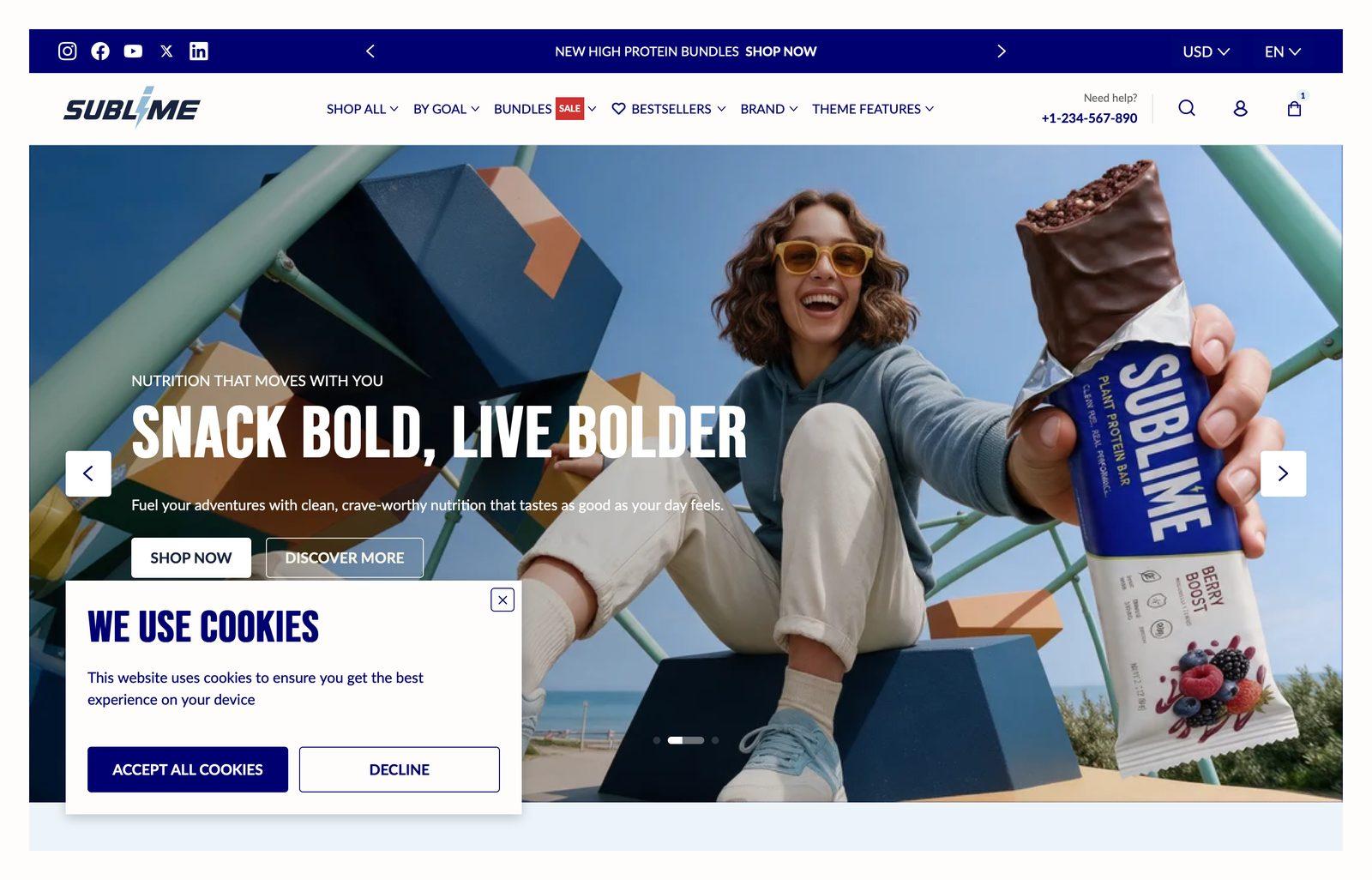
Cookie banner overlay in the Sublime theme

At a glance: Already in your theme. Find it in the Overlay area of the left sidebar, on every page.

Good for

  • Collecting cookie consent from visitors in the EU, the UK and other regions that require it

Connect the banner to Shopify's privacy settings

  1. In your Shopify admin, go to Settings → Customer privacy and open the cookie banner settings.
  2. Choose the regions where you need visitors' consent before collecting data. Sublime's banner shows only to visitors in those regions who haven't made a choice yet. Everyone else never sees it.
  3. If shoppers see Shopify's own cookie banner as well as Sublime's, switch Shopify's off in the same settings so there's only one.
  4. In the theme editor, click Cookies in the left sidebar to preview and style the banner. It only shows in the editor while the section is selected.
  5. To test on your live store, open a private window while browsing from a region that needs consent, for example over a VPN. A visitor outside those regions won't see the banner.

Section settings

Layout

Layout Chooses the arrangement of the section content.

Choose Floating (default) or Docked.
Pop-up position Which bottom corner the Floating banner appears in on desktop.

Choose Left (default) or Right. Only appears when Layout is Floating.

Content

Heading The section title. Leave it empty to hide the heading row entirely and let the content start at the top.
Description Body copy shown under the heading. Supports bold, italic and links.

Buttons

Accept button label The text on the accept button. Clicking it tells Shopify the visitor accepts analytics, marketing and preference cookies. Leave it empty to hide the button.
Decline button label The text on the decline button. Clicking it tells Shopify the visitor refuses those cookies, so tracking stays off for them. Leave it empty to hide the button.

Tips

  • Offer a real choice. In many regions, a banner with only an accept button isn't enough. Keep a decline button visible.
  • Keep the description short and link to your policy. The Description field supports links, so point it to your privacy policy.

Troubleshooting

The cookie banner doesn't show on my store

Shopify decides who sees it. It only appears to visitors in a region you've set to need consent, and only until they've answered. Once your browser has answered or closed the banner, it won't come back. Test in a new private window.

What's the difference between Decline and the close button?

Decline tells Shopify the visitor said no, so tracking stays off. The close button just hides the banner without recording a choice. The banner won't come back in that browser, and in regions that need consent Shopify treats no answer as no consent.

Did this answer your question? Thanks for the feedback There was a problem submitting your feedback. Please try again later.