Video
A video from a file you upload or a YouTube or Vimeo link, with an optional heading and oversized display text.
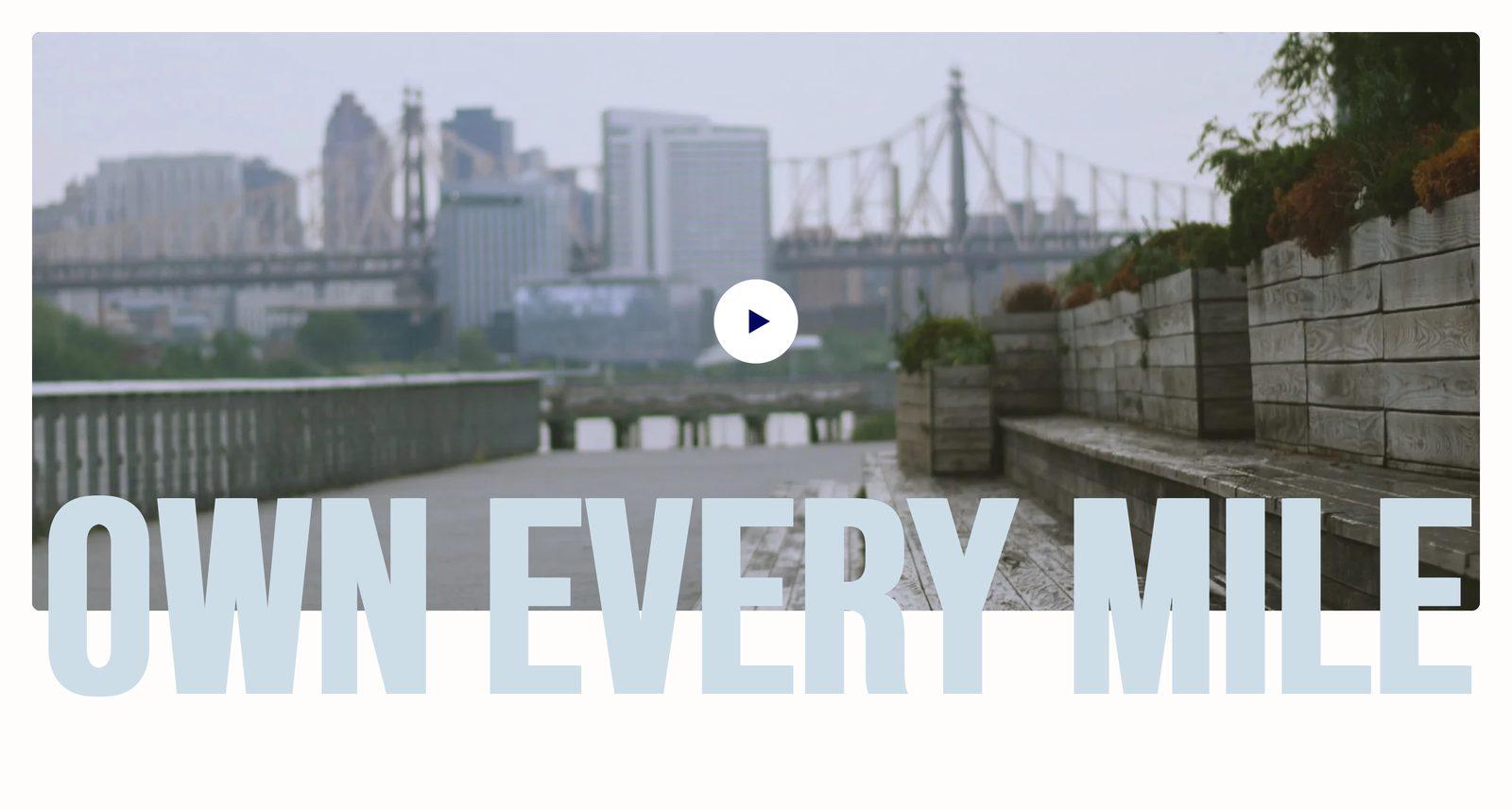
At a glance: Add it to any page with Add section.
Good for
- A brand film or campaign video on the homepage
- A row of product demos or how-to videos to swipe through
- A looping video with a headline and button over it
How to add the section
- From your Shopify admin, go to Online Store → Themes and click Customize on Sublime.
- Open the page you want to edit from the dropdown at the top of the editor.
- In the left sidebar, click Add section.
- Search for Video and select it.
- Drag it into position, adjust the settings below, and click Save.
Section settings
Content
| Caption |
Small label above the heading, used for eyebrow text like a category or a date. |
| Heading |
The section title. Leave it empty to hide the heading row entirely and let the content start at the top. |
| Heading size |
Picks one of the heading sizes defined in Theme settings → Typography, so headings stay consistent across sections instead of being sized one by one.Choose Default (default), H1, H2, H3, H4, H5 or H6. |
| Description |
Body copy shown under the heading. Supports bold, italic and links. |
| Text alignment |
Aligns the heading and body text left, center or right.Default: Left. |
| Button label |
Text on the button. Leave it empty to hide the button. Two or three words reads best. |
| Button link |
Where the button goes. A button with no link is not shown. |
| Open link in new tab |
Opens the link in a new browser tab. Best kept for links that leave your store, so shoppers don't lose their place.Off by default. |
| Button style |
Picks one of the button styles defined in Theme settings → Buttons: primary, secondary or tertiary.Choose Primary (default), Secondary or Tertiary. |
| Button icon |
Optional icon shown after the button label.Choose None (default), Arrow left, Arrow right, Arrow up, Arrow down, Chevron left, Chevron right, Chevron up, Chevron down, Arrow up right, Plus, Minus, Cross, Check, Play, Cart, Shopping cart, Search, Link, Download, Envelope, Home, Edit, User, Login, Heart, Chat, Filter, Trash, Share, Phone, Map pin or Eye. |
Video layout
| Enable full width |
Stretches the section edge to edge instead of holding it inside the page container.Off by default. |
| Desktop video layout on carousel |
Single shows one video at a time across the full width. Slides leaves the edge of the next video peeking in on desktop, a hint that there is more to swipe to.Choose Single or Slides (default). |
| Desktop video size |
Height of the video on desktop: about 440px for Small, 550px for Medium and 640px for Large. Adapt to first video uses the first video's own proportions, taken from its cover image or uploaded file. YouTube and Vimeo links count as 16:9.Choose Small (default), Medium, Large or Adapt to first video. |
| Mobile video size |
Height of the video on mobile: about 375px for Small, 450px for Medium and 500px for Large. Adapt to first video uses the first video's own proportions.Choose Small (default), Medium, Large or Adapt to first video. |
| Show large text |
Adds a line of oversized display text to the section.Off by default. |
| Large text |
Oversized display text, usually a single word or short phrase.Only appears when Show large text is on. |
| Large text color |
Color of the oversized display text.Default: #007988. Only appears when Show large text is on. |
Features
Videos autoplay and loop by default when overlay content is present.
| Enable video autoplay |
Starts the video as soon as it is in view. Autoplaying video is always muted, because browsers block sound without a click.Off by default. |
| Enable video looping |
Restarts the video when it reaches the end.Off by default. |
Appearance
| Color scheme |
Sets the background, text, border and button colors for the section. Schemes are defined once in Theme settings → Colors and reused everywhere, so changing a scheme updates every section using it. |
Spacing
Top and bottom spacing for desktop, with optional separate values for mobile. These are the same controls on every section. See Settings every section shares.
Blocks
Blocks are the individual pieces inside the section. In the sidebar, click Add block under the section to add one, and drag blocks to reorder them. The order in the sidebar is the order on the page.
Video block
Inside each Video you can add these nested blocks: Badge group, Heading, Text and Button group. Click the block in the sidebar, then Add block beneath it.
Video
| Desktop video |
Video shown on desktop. |
| Mobile video |
A separate, usually lighter video for mobile.Replaces the video URL. |
| Desktop cover image |
Shown before the video plays. Leave it empty to use the video's own preview frame. |
| Mobile cover image |
A separate cover image for phones. Leave it empty to use the desktop cover image. |
| Video link |
A YouTube or Vimeo link to play instead of an uploaded file. If you've also uploaded a video, the uploaded file is used and this link is ignored. |
| Overlay opacity |
Darkens the image behind the text so the text stays readable. Higher values mean a darker image.Adjustable from 0% to 100% (default 24%). |
| Overlay content alignment |
Lines up the text and buttons you add on top of the video to the left, center or right.Default: Left. |
| Overlay vertical alignment |
Places the text and buttons you add on top of the video at the top, middle or bottom of the frame.Choose Top, Center or Bottom (default). |
Appearance
| Color scheme |
Sets the background, text, border and button colors for the section. Schemes are defined once in Theme settings → Colors and reused everywhere, so changing a scheme updates every section using it. |
Tips
- Upload a cover image. It's the first frame shoppers see, so pick one that makes them want to press play.
- Uploaded files look cleaner than links. YouTube and Vimeo show their own player branding. A video uploaded to Shopify plays without it.
- Add a separate mobile video for vertical footage. A 9:16 clip fills a phone screen much better than a cropped 16:9 one.
Troubleshooting
| Problem |
Fix |
| There's no play button or controls on my video |
When a video has text or buttons on top of it, it always plays muted on a loop with no controls, because the overlay would block them. Remove the overlay blocks to bring the play button back. |
| My YouTube link is ignored |
If a video file is also uploaded in the same block, the file wins. Remove the file to use the link. |
| The arrows show with only one video |
The controls row is always there so the layout stays the same. With one video the arrows are simply disabled. |

