Sales countdown
A countdown to a deadline, with oversized sale text, an image and an optional product card. When the timer reaches zero the whole section removes itself from the page, so an expired offer never lingers.
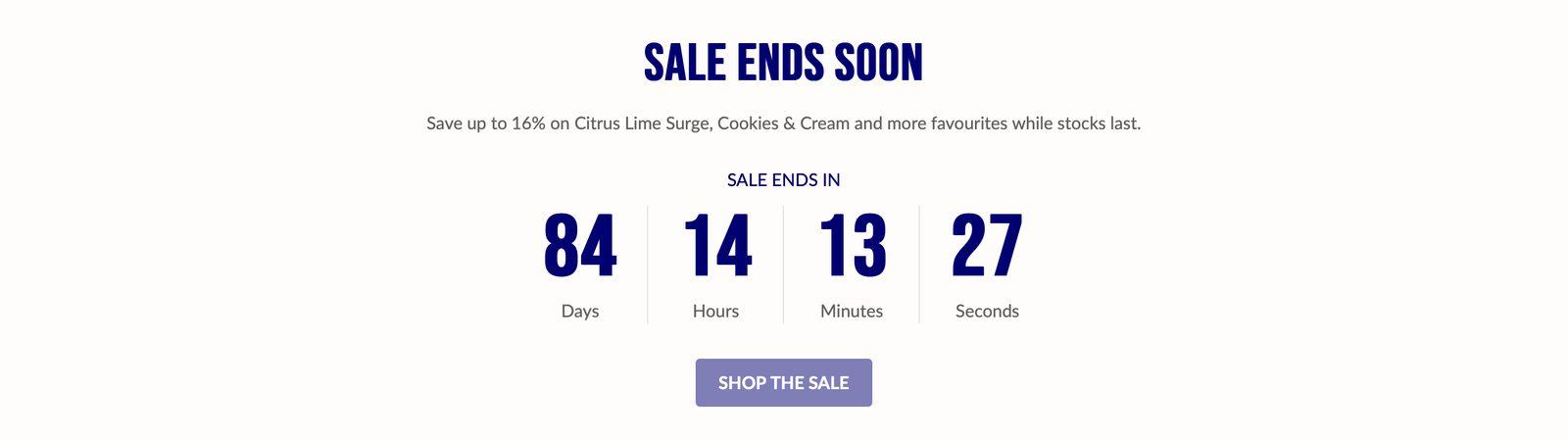
At a glance: Add it to any page with Add section.
Good for
- A flash sale or holiday promotion with a real end time
- A product launch or preorder deadline
- Last-order dates for delivery before a holiday
How to add the section
- From your Shopify admin, go to Online Store → Themes and click Customize on Sublime.
- Open the page you want to edit from the dropdown at the top of the editor.
- In the left sidebar, click Add section.
- Search for Sales countdown and select it.
- Drag it into position, adjust the settings below, and click Save.
Section settings
Product
| Featured product |
Adds a small product card (image, title and price) over the section image, linking to the product. Only shown when Show image is on. |
Large text
| Show large text |
Adds a line of oversized display text to the section.On by default. |
| Large text |
Oversized display text, usually a single word or short phrase.Only appears when Show large text is on. |
| Large text color |
Color of the oversized display text.Default: #007988. Only appears when Show large text is on. |
Media
| Show image |
Shows the image for this item.Displays an image alongside the content.On by default. |
| Desktop image |
Background image used on desktop.2880 x 1280px (large) .jpg recommended.Only appears when Show image is on. |
| Desktop image ratio |
Image crop shape on desktop.Choose Adapt to image, Portrait (3:4), Square (1:1) (default) or Landscape (4:3). Only appears when Show image is on. |
| Mobile image |
A separate image used on mobile. Leave empty to reuse the desktop image.1200 x 900px .jpg recommended.Only appears when Show image is on. |
| Mobile image ratio |
Image crop shape on mobile.Choose Adapt to image, Portrait (3:4), Square (1:1) (default) or Landscape (4:3). Only appears when Show image is on. |
Layout
| Desktop image position |
Which side of the text the image sits on, on desktop.Choose Left (default) or Right. Only appears when Show image is on. |
| Mobile image position |
Whether the image sits above or below the text on mobile.Choose Top (default) or Bottom. Only appears when Show image is on. |
| Content alignment |
Aligns the text content within its column.Default: Left. |
Appearance
| Color scheme |
Sets the background, text, border and button colors for the section. Schemes are defined once in Theme settings → Colors and reused everywhere, so changing a scheme updates every section using it. |
Spacing
Top and bottom spacing for desktop, with optional separate values for mobile. These are the same controls on every section. See Settings every section shares.
Blocks
Blocks are the individual pieces inside the section. In the sidebar, click Add block under the section to add one, and drag blocks to reorder them. The order in the sidebar is the order on the page.
Countdown timer block
| Caption |
Small label above the heading, used for eyebrow text like a category or a date. |
| End date |
Use the YYYY-MM-DD format. |
| End time |
Use the 24-hour HH:MM format. |
| Time zone |
Shop time zone ends the countdown at the same moment for everyone, using the time zone in your Shopify settings. User's local time zone ends it at that clock time wherever each shopper is, so the end moment differs by location.Choose Shop time zone (default) or User's local time zone. |
Spacing
Top and bottom spacing for desktop, with optional separate values for mobile. These are the same controls on every section. See Settings every section shares.
Tips
- Only count down to a real deadline. Shoppers notice a timer that resets or never ends, and it costs trust.
- Use Shop time zone for sales that end at one moment everywhere, such as a Black Friday sale that ends at midnight your time.
- Add a Featured product so shoppers can go straight to what's on sale.
- Schedule the price change separately. The timer only counts; it doesn't start or end a discount.
Troubleshooting
| Problem |
Fix |
| The section has disappeared from my store |
The countdown has ended. At zero the section removes itself from the page for shoppers. It stays visible in the theme editor, so update End date and End time or remove the section. |
| The timer ends at the wrong time |
Check Time zone in the Countdown timer block. Shop time zone uses the time zone in your Shopify admin settings; User's local time zone uses each shopper's own clock. Also check End time is in 24-hour format, for example 18:00 for 6 PM. |
| The countdown ends an hour early or late |
With Shop time zone, the timer uses your store's current offset from UTC. If daylight saving time starts or ends between today and the end date, the deadline can be out by an hour until the clocks change. Check it again after the change, or adjust End time. |
| The product card isn't showing |
The card sits on the image, so it only appears when Show image is on and a Featured product is selected. |
Heads up: If End date isn't in the YYYY-MM-DD format, for example 2026-12-31, the timer stays at 00 and never counts down.

