Store locator
A map of your store locations, each with address, hours and directions. The interactive map needs a Google Maps API key; without one it falls back to an image and the location list still works.
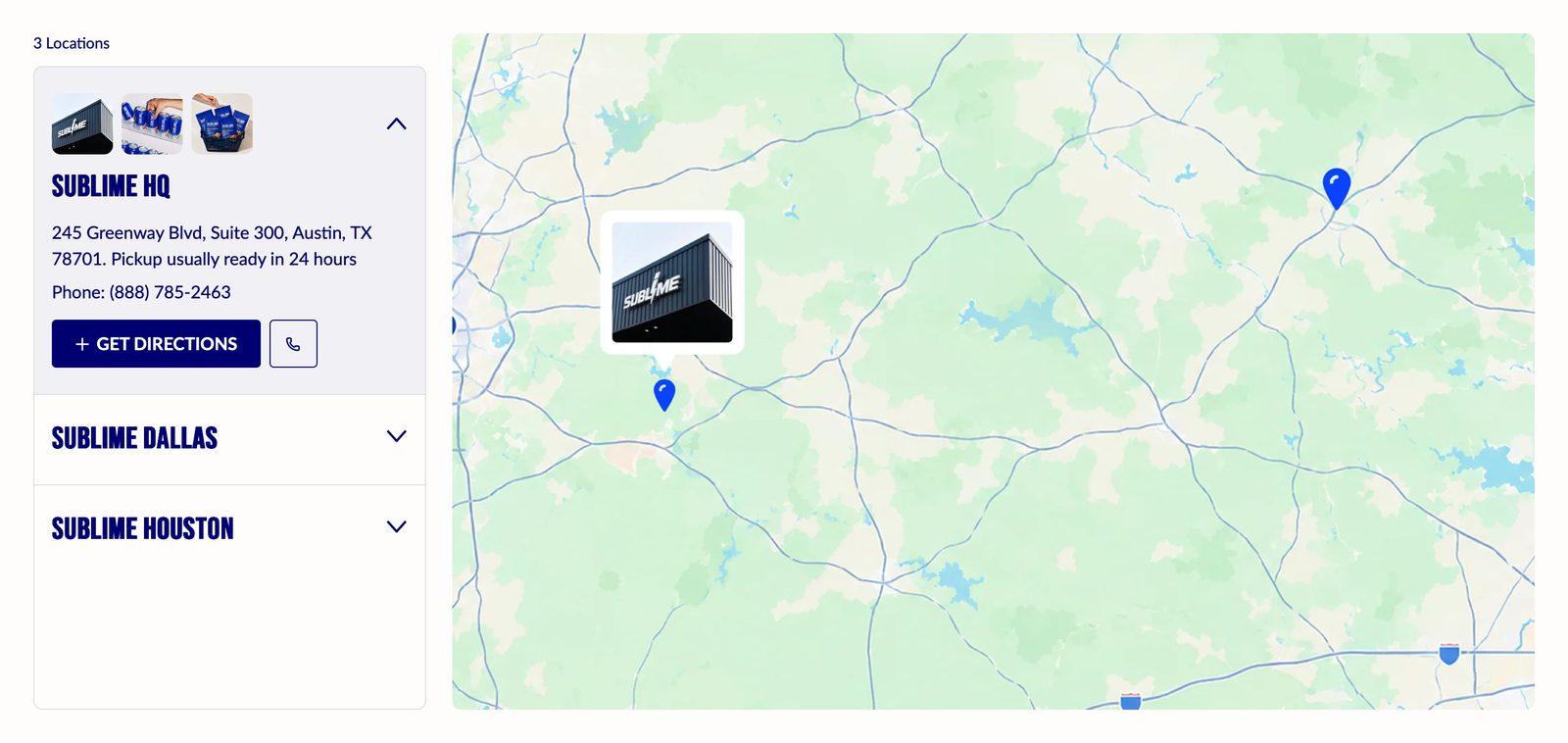
At a glance: Add it to any page with Add section.
Good for
- Listing your shops with address, opening hours and directions
- Showing stockists on a map
- A single flagship store with a photo gallery and a map
How to add the section
- From your Shopify admin, go to Online Store → Themes and click Customize on Sublime.
- Open the page you want to edit from the dropdown at the top of the editor.
- In the left sidebar, click Add section.
- Search for Store locator and select it.
- Drag it into position, adjust the settings below, and click Save.
Section settings
Content
| Caption |
Small label above the heading, used for eyebrow text like a category or a date. |
| Heading |
The section title. Leave it empty to hide the heading row entirely and let the content start at the top. |
| Heading size |
Picks one of the heading sizes defined in Theme settings → Typography, so headings stay consistent across sections instead of being sized one by one.Choose Default (default), H1, H2, H3, H4, H5 or H6. |
| Description |
Body copy shown under the heading. Supports bold, italic and links. |
| Text alignment |
Aligns the heading and body text left, center or right.Default: Left. |
| Button label |
Text on the button. Leave it empty to hide the button. Two or three words reads best. |
| Button link |
Where the button goes. A button with no link is not shown. |
| Open link in new tab |
Opens the link in a new browser tab. Best kept for links that leave your store, so shoppers don't lose their place.Off by default. |
| Button style |
Picks one of the button styles defined in Theme settings → Buttons: primary, secondary or tertiary.Choose Primary (default), Secondary or Tertiary. |
| Button icon |
Optional icon shown after the button label.Choose None (default), Arrow left, Arrow right, Arrow up, Arrow down, Chevron left, Chevron right, Chevron up, Chevron down, Arrow up right, Plus, Minus, Cross, Check, Play, Cart, Shopping cart, Search, Link, Download, Envelope, Home, Edit, User, Login, Heart, Chat, Filter, Trash, Share, Phone, Map pin or Eye. |
Layout
| List position |
Where the list sits relative to the other content.Applies to desktop and tablet only.Choose Left (default) or Right. |
Map
| Google Maps API key |
Required for the interactive map. Create one in Google Cloud Console with the Maps JavaScript API enabled.Required to render the map. Uses your own key. |
| Default zoom |
Starting zoom level of the map. Higher is closer in.Adjustable from 1 to 20 (default 12). |
| Fallback image |
Shown when no other image is available.Shown when no API key is provided. |
Images
| Overlay opacity |
Darkens the image behind the text so the text stays readable. Higher values mean a darker image.Adjustable from 0% to 100% (default 20%). |
| Image fit |
Cover fills the frame and crops the overflow; Contain fits the whole image inside the frame and may leave space at the edges.Applies to desktop and mobile.Choose Cover (default) or Contain. |
| Image background color |
Fills the space around an image when it is fitted rather than cropped. It's most visible with product shots on transparent backgrounds.Only appears when Image fit is Contain. |
| Heading color |
Color of the store name shown as a caption on the large gallery image. Leave it empty to use the color scheme's background color. |
Text sizes
| Location heading size |
Picks one of the heading sizes defined in Theme settings → Typography, so headings stay consistent across sections instead of being sized one by one.Choose Default (default), H1, H2, H3, H4, H5 or H6. |
Appearance
| Color scheme |
Sets the background, text, border and button colors for the section. Schemes are defined once in Theme settings → Colors and reused everywhere, so changing a scheme updates every section using it. |
| Card color scheme |
Color scheme for cards inside the section, so they can sit apart from the section background. |
Spacing
Top and bottom spacing for desktop, with optional separate values for mobile. These are the same controls on every section. See Settings every section shares.
Blocks
Blocks are the individual pieces inside the section. In the sidebar, click Add block under the section to add one, and drag blocks to reorder them. The order in the sidebar is the order on the page.
Location block
Content
| Location name |
Name of this store location. |
| Store details |
Address, opening hours and anything else shoppers need.Address and any extra information. |
| Phone |
Phone number as you want it displayed, including country code. |
| Enable click to call |
Makes the number tappable on mobile so it dials directly.Shows a call button on the card, linked to the phone number above.On by default. |
| Coordinates |
Latitude and longitude, comma separated, for example 51.5074, -0.1278. Used to place the map pin.Format: lat, lng, for example 40.711712, -74.005343. In Google Maps, right-click the location and copy the coordinates. |
| Custom link |
Link to this location in Google Maps or Apple Maps.Adding a link here overrides the directions link generated from the coordinates. |
Images
First 3 show as thumbnails on the card; Add up to 5 images for the location gallery.
| Show store name under gallery |
Shows the location's name as a caption on the large gallery image when a shopper opens this location.On by default. |
| Heading color |
Color of this location's store name on the gallery caption. Leave it empty to use the section's Heading color.Only appears when Show store name under gallery is on. |
| Image 1 |
Custom image for this slot.1200 x 1200px .jpg recommended. |
| Image 2 |
Custom image for this slot.1200 x 1200px .jpg recommended. |
| Image 3 |
Custom image for this slot.1200 x 1200px .jpg recommended. |
| Image 4 |
Custom image for this slot.1200 x 1200px .jpg recommended. |
| Image 5 |
Custom image for this slot.1200 x 1200px .jpg recommended. |
Tips
- Restrict your Google Maps API key to your store's domain so no one else can use it on your billing account.
- Add photos to each location. A shop front helps shoppers recognize it when they arrive.
- Use Custom link for exact directions when the pin on the map doesn't match the entrance.
Troubleshooting
| Problem |
Fix |
| The map isn't loading |
The interactive map needs a Google Maps API key with the Maps JavaScript API enabled. Without a key, the Fallback image shows instead. |
| A pin is in the wrong place |
Coordinates must be latitude first, then longitude, separated by a comma, for example 51.5074, -0.1278. Swapping them puts the pin in the wrong place entirely. |
| The location name doesn't show on the gallery image |
Turn on Show store name under gallery in that Location block. |

