Quiz
A step-by-step product finder. Shoppers answer a few questions, and a results window recommends matching products, either ones you pick for each answer or ones found by product tag or metafield. Answers can also send shoppers down different branches of questions.
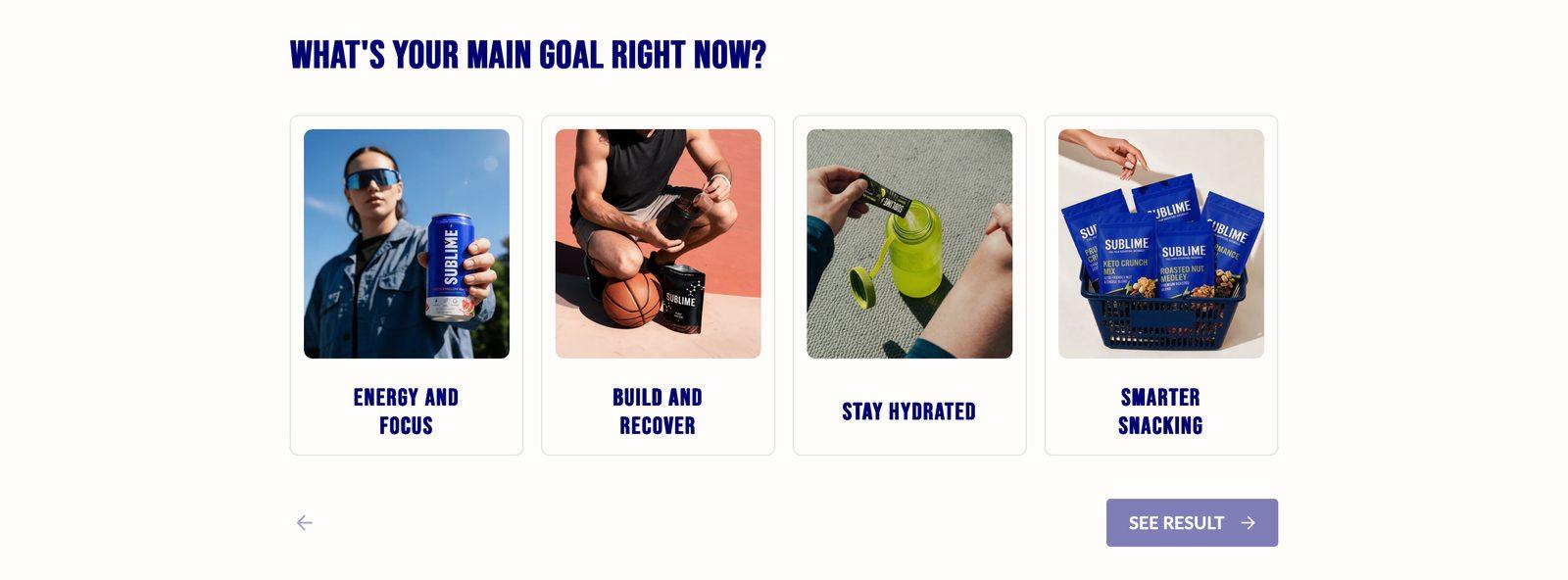
At a glance: Add it to any page with Add section.
Good for
- A Find your perfect… quiz that recommends two or three products
- A gift finder that asks who it's for, then branches into different questions
- Guiding new shoppers through a large catalog by need, taste or skin type
Set up the quiz
- Add the section and the questions. Add the Quiz section. Its Default block is fixed in place and holds the main run of questions, shown one after another. Click Add block under Default to add a Question, and fill in up to four options. An option only appears if it has text or an image.
- Choose how results are found. In the section settings, set Product setup. Default: open each question and pick the products for each option under Products (up to 12). Advanced: give each option a Result tag instead, and the quiz finds the products.
- Default mode: choose how answers combine. Product match decides the results. Match any shows every product picked for any of the chosen answers. Match all shows only products picked for every chosen answer, so the more questions a shopper answers, the fewer the results.
- Advanced mode with product tags: tag your products. Leave Metafield key empty. In Products, add the same tags you used as result tags, for example citrus or dry skin. An option can carry several tags, separated by commas. Then open the Search & Discovery app, go to Filters, and add the Tag filter. The quiz searches through storefront filters, so without the Tag filter it finds nothing.
- Advanced mode with tags: know how tags combine. The quiz collects the tags from every answer and asks Shopify for products that carry all of them. Each tagged answer narrows the results, so tag products generously, or leave the Result tag empty on questions that shouldn't filter.
- Advanced mode with a metafield (optional). Instead of tags, you can match a product metafield. In Settings → Custom data → Products, create a metafield that is a list of single line text, and fill it in on each product with values that match your result tags. In the Search & Discovery app, add that metafield as a filter. Then enter its
namespace.key, for example custom.quiz_match, in Metafield key. With a metafield, a product matches if it has any of the chosen values.
- Add a branch (optional). Click Add block on the section itself and choose Branch. Give it a Branch ID, such as coffee, and add Question blocks inside it. Branches can hold further branches.
- Connect an option to the branch. On a single-choice question, open the option, turn on Enable branch condition, and type the Branch ID into Connect to branch. Capital letters and spaces at either end don't matter. Choosing that option jumps to the branch's first question.
- Test every path. Preview the store and try each route through the quiz, including skipped questions, to check that every path ends on at least one product.
How to add the section
- From your Shopify admin, go to Online Store → Themes and click Customize on Sublime.
- Open the page you want to edit from the dropdown at the top of the editor.
- In the left sidebar, click Add section.
- Search for Quiz and select it.
- Drag it into position, adjust the settings below, and click Save.
Section settings
Content
| Heading |
The section title. Leave it empty to hide the heading row entirely and let the content start at the top. |
| Heading size |
Picks one of the heading sizes defined in Theme settings → Typography, so headings stay consistent across sections instead of being sized one by one.Choose Default (default), H1, H2, H3, H4, H5 or H6. |
| Description |
Body copy shown under the heading. Supports bold, italic and links. |
| Start button label |
Leave empty to hide the intro banner and show the first question right away. |
| Button style |
Picks one of the button styles defined in Theme settings → Buttons: primary, secondary or tertiary.Choose Primary (default), Secondary or Tertiary. Only appears when Start button label is not blank. |
| Button icon |
Optional icon shown after the button label.Choose None (default), Arrow left, Arrow right, Arrow up, Arrow down, Chevron left, Chevron right, Chevron up, Chevron down, Arrow up right, Plus, Minus, Cross, Check, Play, Cart, Shopping cart, Search, Link, Download, Envelope, Home, Edit, User, Login, Heart, Chat, Filter, Trash, Share, Phone, Map pin or Eye. Only appears when Start button label is not blank. |
| Product setup |
How the quiz finds the products it recommends. Default: you pick the products for each option by hand. Advanced: each option has a Result tag, and the quiz finds in-stock products that carry it, as a product tag or, with Metafield key filled in, as a metafield value.Choose Default or Advanced (default). |
| Metafield key |
Use the namespace.key format. Connect a list metafield used for quiz product matching. The metafield must also be registered as a product filter in the Search & Discovery app for matching to work.Only appears when Product setup is Advanced. |
Card style
| Option layout |
Vertical puts the question above the options. Horizontal puts the question and navigation on the left and the options on the right, on desktop.Choose Vertical (default) or Horizontal. |
| Question text size |
The heading size used for every question, from the sizes in Theme settings → Typography.Choose H1, H2, H3 (default), H4, H5 or H6. |
| Options text size |
The text size of the option labels, from the heading sizes in Theme settings → Typography.Choose H1, H2, H3, H4, H5 or H6 (default). |
Quiz result
| Product match |
"Match any" shows all products from the selected options combined. "Match all" shows only products common to every selected option.Choose Match any (default) or Match all. Only appears when Product setup is Default. |
Appearance
| Option color scheme |
Selected options use this scheme's accent color. |
| Color scheme |
Sets the background, text, border and button colors for the section. Schemes are defined once in Theme settings → Colors and reused everywhere, so changing a scheme updates every section using it. |
Spacing
Top and bottom spacing for desktop, with optional separate values for mobile. These are the same controls on every section. See Settings every section shares.
Blocks
Blocks are the individual pieces inside the section. In the sidebar, click Add block under the section to add one, and drag blocks to reorder them. The order in the sidebar is the order on the page.
Branch block
Inside each Branch you can add these nested blocks: Question and Branch. Click the block in the sidebar, then Add block beneath it.
| Branch ID |
Enter a unique ID and use it to connect this branch to an option. |
Question block
| Question text |
The question shown at the top of this step. Short, conversational questions work best. |
| Allow multiple selections |
Lets shoppers pick more than one option. Multiple-choice questions can't send shoppers into a branch. In Advanced mode every tag chosen narrows the results; in Default mode Product match decides how the picks combine.Off by default. |
| Allow skipping |
If a question isn't mandatory, users can skip it.Off by default. |
| Show images |
Works best when every option has an image. Position applies to all.Off by default. |
| Image position |
Which side of the text the image sits on.Choose Side (default) or Top. Only appears when Show images is on. |
Option 1–4
Each of the 4 options has the same settings, set separately for each one.
| Option text |
The option's label. An option only appears if it has text or an image, so leave options 3 and 4 empty for a two-answer question. |
| Option image |
800 x 1000px .jpg recommended.Only appears when Show images is on. |
| Result tag |
The product tag, or metafield value, this answer matches, such as citrus. Separate several with commas. Options that share a tag lead to the same products.Enter a tag that matches products in your store. Options with the same tag lead to the same result.Only appears when Product setup is Advanced. |
| Products |
Select the products to be shown when this option is chosen. Only used when Product setup is set to Default. |
| Enable branch condition |
Route this option to a conditional branch if you have set up another group of paths.Off by default. Only appears when Allow multiple selections is off. |
| Connect to branch |
Enter the "Branch ID" from the branch block you want to connect.Only appears when Allow multiple selections is off and Enable branch condition is on. |
Tips
- Three to five questions is the sweet spot. Every extra step loses a few shoppers.
- Make every path end on a product. A "no results" screen at the end of a quiz feels worse than no quiz, so test each route.
- Use images for taste and style questions. Turn on Show images and give every option a picture; questions without an image for every option look uneven.
- Turn on Allow skipping for optional questions like budget, so shoppers who don't care aren't forced to choose.
- Tag for the quiz on purpose. Result tags such as quiz-citrus keep quiz tags apart from the tags you use elsewhere.
Troubleshooting
| Problem |
Fix |
| The quiz always says no products were found (Advanced mode) |
Check three things. The Tag filter (or your metafield filter) has been added in the Search & Discovery app. The products actually carry the tags or values typed in Result tag. And the products are in stock and available on the Online Store; sold-out products are left out. With tags, a product must carry every tag the shopper collected, so try fewer tagged questions. |
| After a branch, the quiz goes straight to results |
That's by design. Once a shopper enters a branch, the quiz runs that branch's questions and then shows results; it doesn't return to the remaining Default questions. Put any questions every shopper should answer before the branching question, or repeat them inside each branch. |
| Choosing an option doesn't open my branch |
Check that Enable branch condition is on for that option and that Connect to branch matches the branch's Branch ID exactly. Branching isn't available on questions with Allow multiple selections turned on. |
| The Question 1 of 3 counter has disappeared |
The counter only counts the Default questions. It's hidden inside a branch, and hidden altogether when the first question can lead into a branch, because the number of steps is then unknown. |
Good to know: In Advanced mode the quiz searches your whole catalog (the all products collection) and looks at the first 150 matching products, or 250 when matching by metafield. Sold-out products never appear in results, in either mode.

