
Content Grid
Available After Flawless Version 13.0
Overview
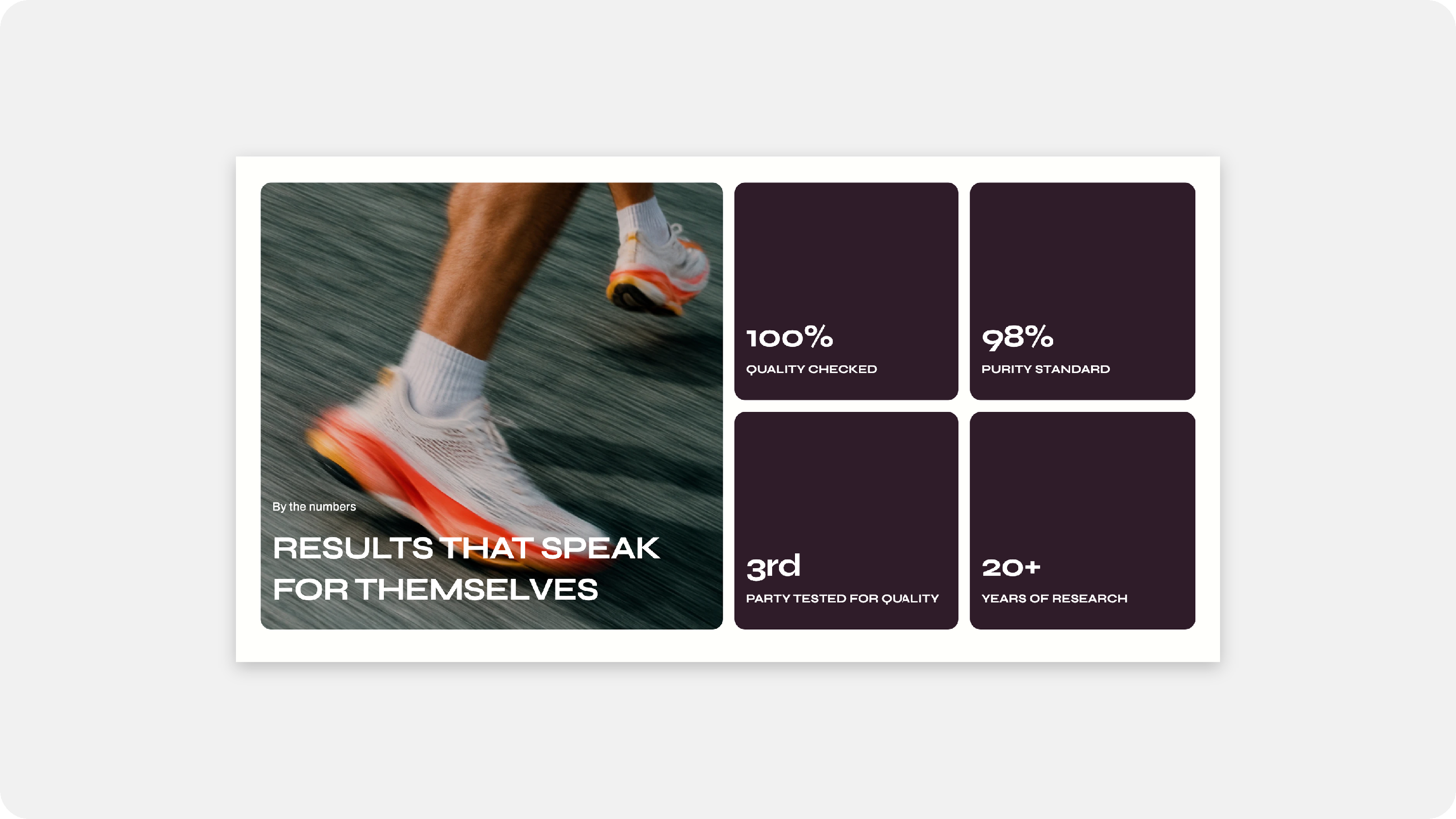
The Content Grid section helps you show off your brand's best numbers, features, and stories in a bold, magazine-style grid. Each card can carry a big number, an icon, a short message, a button, and even a background image or video.
Use it to share results like "22% repeat purchase rate", spotlight product benefits, or build playful bento-style layouts where some cards are big and others are small.
How It Works
The Content Grid section is made of three parts:
- Section settings – Set the number of columns, the section heading, colors, and spacing.
- Grid blocks – Each Grid block is one card. Choose how many rows and columns it fills, then add a number, icon, image or video.
- Heading blocks – Add a Subheading, Heading, Paragraph, and Button inside each card to tell your story.
Mix big and small cards to create a layout that feels uniquely yours.
Section Settings
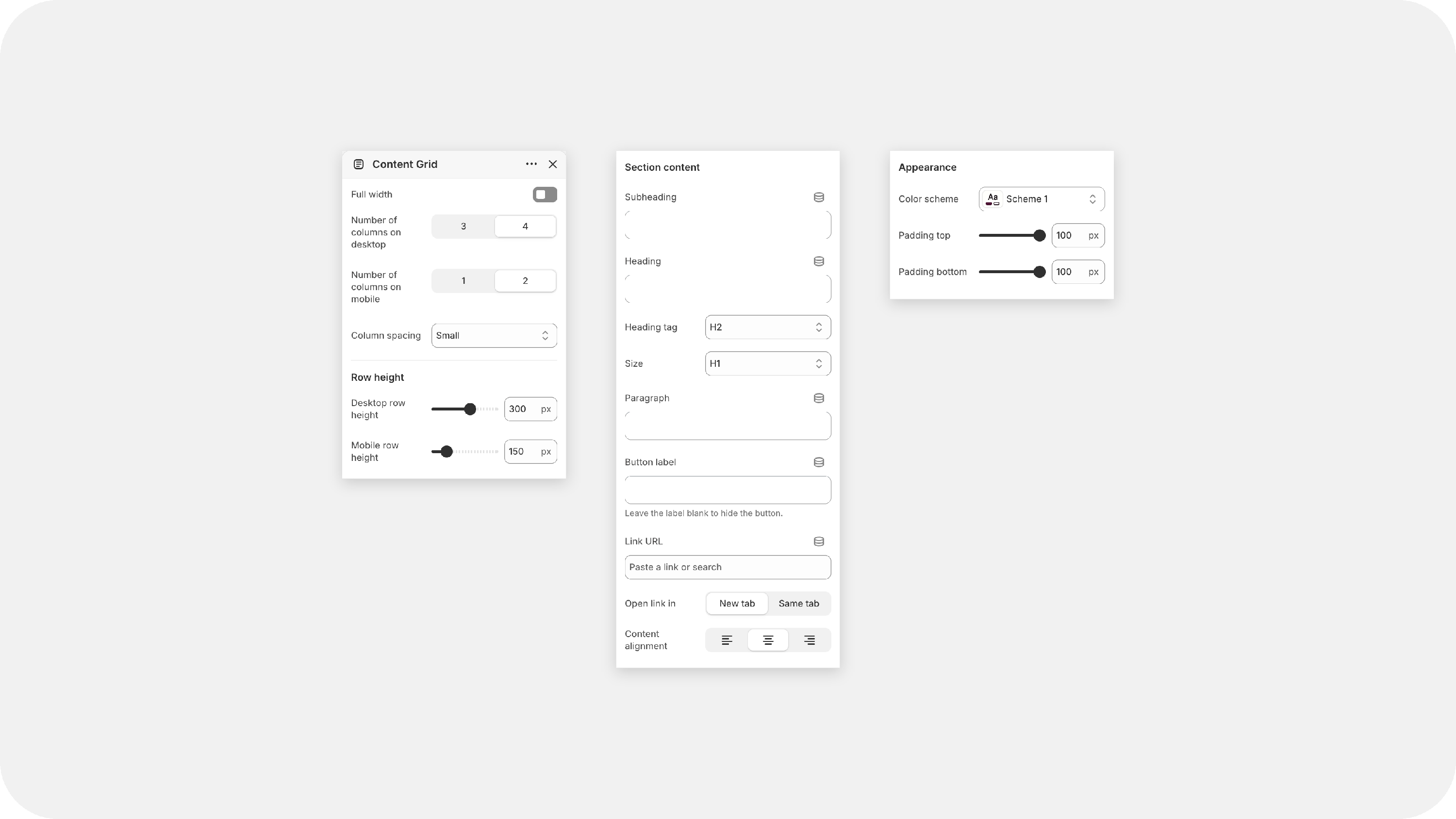
| Full width | Stretches the grid across the full browser width for a bold, immersive look. |
| Number of columns on desktop | Choose 3 or 4 columns. This sets the base grid that your cards sit on. |
| Number of columns on mobile | Choose 2 or 1 column for smaller screens. |
| Column spacing | Choose how much space sits between your cards. Smaller spacing gives a tight, tiled look, while larger spacing lets each card breathe. |
| Row height |
|
| Desktop row height | Sets the height of one grid row on desktop, in pixels. A card that spans 2 rows will be roughly twice this height, so this is the easiest way to make your whole grid taller or shorter. |
| Mobile row height | Does the same for mobile. A slightly lower value usually keeps cards from feeling too tall on small screens. |
| Section content |
|
| Subheading | A short line above the main heading, like "By the numbers". |
| Heading | The main title of the section, like "Results that speak for themselves". |
| Heading tag | Pick the HTML tag (H1–H6) for SEO. This doesn't change how the heading looks. |
| Size | Choose how big the heading appears. |
| Paragraph | A short supporting line under the heading. |
| Button label | Text on the section button (e.g. "View all"). Leave it blank to hide the button. |
| Link URL | Where the button takes your shoppers. |
| Open link in | Choose New tab or Same tab. |
| Content alignment | Left, Center, or Right-align the section heading area. |
| Appearance |
|
| Color scheme | Pick one of your theme's color schemes for the section. |
| Padding top / Padding bottom | Add breathing room above and below the section. |
|
|
|
Grid Block
Each Grid block is one card in your grid. Click Add block inside the section to add as many cards as you like.
Card size
This is where the bento magic happens! Tell each card how much space it should take up.
| Setting | What it does |
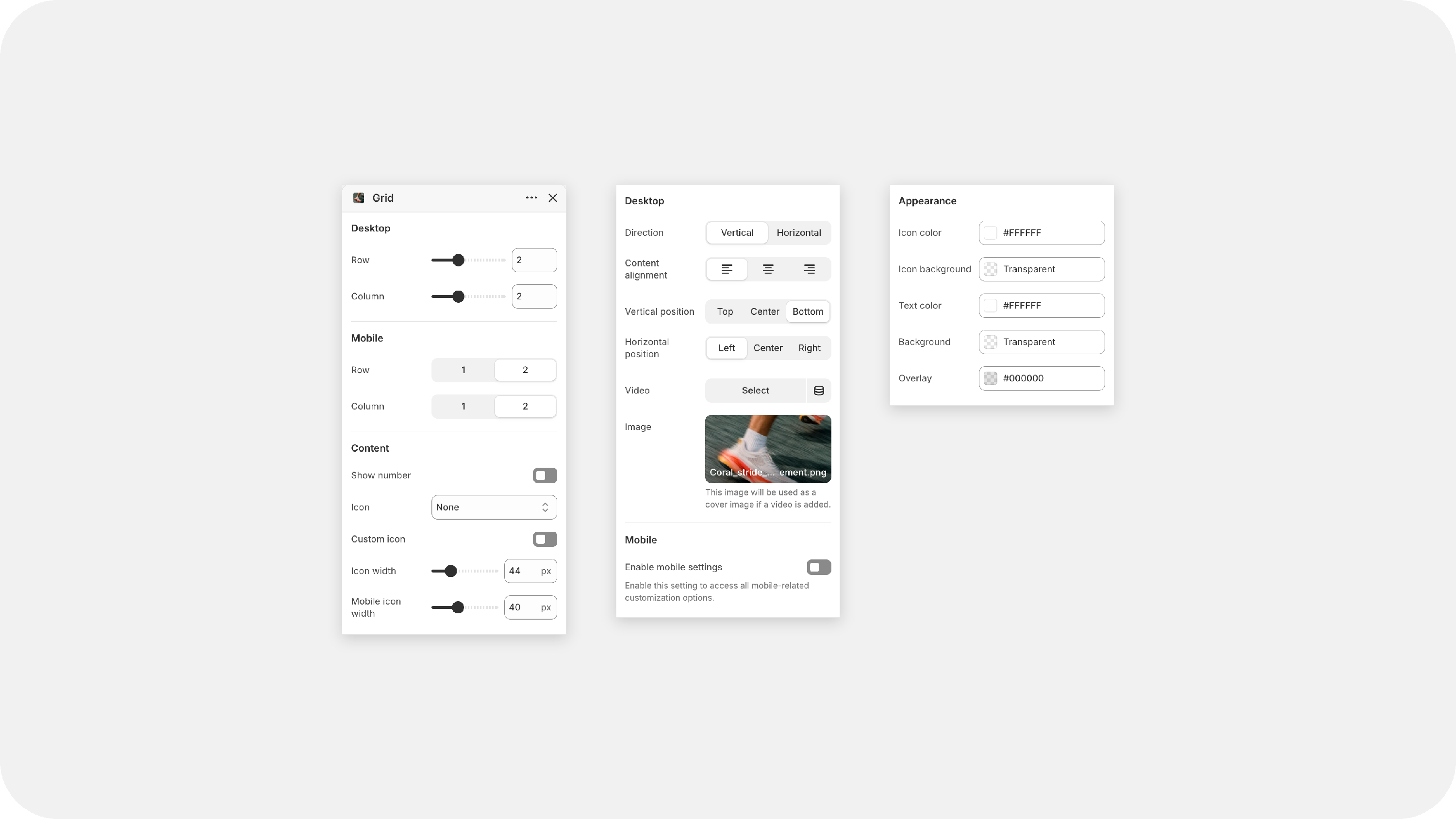
| Desktop – Row | How many rows this card spans on desktop, from 1 to 4. Set it to 2 for a tall card. |
| Desktop – Column | How many columns this card spans on desktop. Set it to 2 for a wide card. |
| Mobile – Row | How many rows this card spans on mobile. |
| Mobile – Column | How many columns this card spans on mobile. |
Content
| Setting | What it does |
|---|---|
| Show number (Toggle) | Turn this on to show a big highlight number, like 22% or 30–40. Once enabled, you'll see the settings below. |
| Number | Type the number you want to show. Formats like 1,123,456,789 or 22% work too. |
| Desktop font size / Mobile font size | Set how big the number appears on each screen size. |
| Icon | Pick an icon from the built-in list, or choose None to hide it. |
| Custom icon (Toggle) | Prefer your own icon? Turn this on and upload an image to use instead. |
| Icon width | Adjust the size of the icon. |
Desktop layout
| Setting | What it does |
|---|---|
| Direction | Vertical stacks the icon and text. Horizontal places them side by side. |
| Content alignment | Left, Center, or Right-align the text inside the card. |
| Content vertical position | Choose whether the icon and number sit at the Top, Centre, or Bottom of the card. |
| Vertical position | Move the text content to the Top, Centre, or Bottom of the card. |
| Horizontal position | Move the content Left, Centre, or Right within the card. |
| Video | Add a video background to the card. |
| Image | Add a background image. This image is also used as the video cover while the video loads. |
Mobile layout
| Setting | What it does |
|---|---|
| Enable mobile settings (Toggle) | Turn this on to style the card differently on mobile. All the mobile options below appear once it's enabled. |
| Direction, Content alignment, Content position, Vertical position, Horizontal position, Content width | Work just like the desktop settings, but only on mobile. |
| Video / Image | Use a different video or image on mobile, like a portrait crop that fits small screens better. |
Appearance
| Setting | What it does |
|---|---|
| Icon color | Color of the icon. |
| Icon background | Color behind the icon. |
| Text color | Color of the number and text in the card. |
| Background | The card's background color when no image or video is added. |
| Overlay | Adds a tint over your image or video so text stays easy to read. |
Blocks Inside Each Card
Inside every Grid block you can add 4 block types to build the card's message.
Subheading Block
| Setting | What it does |
|---|---|
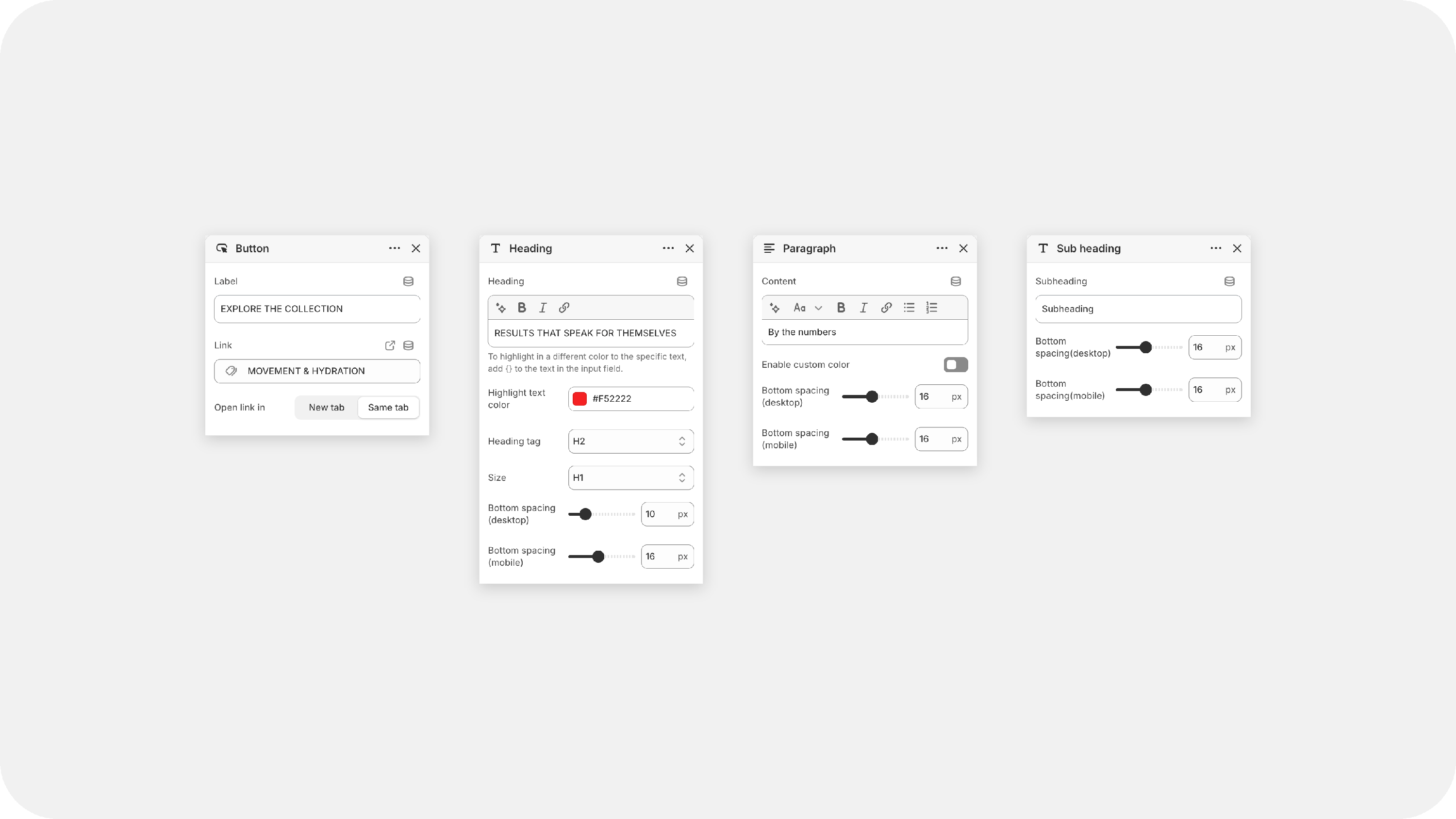
| Subheading | A small label above your text, like "What is inside". |
| Enable custom color (Toggle) | Want the subheading to pop? Turn this on to pick a color just for it. |
| Custom color | The color for your subheading. Appears once Enable custom color is on. |
| Bottom spacing (desktop / mobile) | Space below the subheading on each screen size. |
Heading Block
| Setting | What it does |
|---|---|
| Heading | The main text of the card, like "Repeat purchase rate". Wrap any words in curly brackets { } to highlight them in a different color. |
| Highlight text color | The color used for the words inside { } . |
| Heading tag | Pick the HTML tag (H1–H6) for SEO. |
| Size | Choose how big the heading appears. |
| Bottom spacing (desktop / mobile) | Space below the heading on each screen size. |
Paragraph Block
| Setting | What it does |
|---|---|
| Content | A short supporting line, like "Customers keep coming back". You can add bold, italic, and links. |
| Bottom spacing (desktop / mobile) | Space below the paragraph on each screen size. |
Button Block
| Setting | What it does |
|---|---|
| Button label | Enter the text for your button (e.g. "Explore"). Leave it blank to hide the button. |
| Button link | Paste any URL or pick a product, collection, or page. Leave it empty to make the whole card clickable instead. |
| Open link in | Choose New tab or Same tab. |
| Use outline button style (Toggle) | Switch between a solid button and a clean outline style. |
| Bottom spacing (desktop / mobile) | Space below the button on each screen size. |
Handy Tips 💡
- Pick your column count first, then size each card with Row and Column. A 2×2 card next to smaller cards makes an eye-catching bento layout.
- Keep numbers short and punchy. 22% reads faster than a long sentence.
- Use Overlay on image and video cards so your text stays easy to read.
- Turn on Enable mobile settings when a card looks crowded on phones, and try a different image crop for mobile.